
Promentio Guideline — How the platform works?
The hierarchy
Five levels, each one contained by the one above it. This is the single most important thing to understand.
- SpaceMarketing
A workspace for one team, product or department. The container everything else lives in.
- EpicOwn the enterprise segment
A long-running theme that groups several Objectives. Optional.
- ObjectiveMake enterprise buyers trust us on day one
The change you want to see, in plain language. Not measurable on its own.
- Key ResultCut security-review turnaround from 15 days to 5
A measurable claim that proves the Objective happened. Two to four per Objective.
Attach an Outcome here to hold the actual numbers — current value, target value and unit. One per Key Result.
- InitiativePublish the SOC 2 summary page
The actual task. Has an assignee, dates and an estimate. This is where work happens.
Only the Space is mandatory at the top and the Initiative at the bottom. Epics are optional, and an Objective can sit directly in a Space without one.
Creating work
There are two ways to create something, and which one you use depends on whether the thing has a parent.
From the Create menu
The Create button in the top bar makes the three things that don't need a parent: a Space, an Epic, or an Objective. It takes you to the right page and opens the form for you.
From the parent
Key Results and Initiatives are always created from the item above them. Expand an Objective to add a Key Result; expand a Key Result to add an Initiative. That's what keeps the tree connected.
Whatever you create picks up the active Space from the switcher at the top of the sidebar. If something lands in the wrong Space, check which one was active when you created it.
Step by step
Follow these in order the first time. Each one builds on the last.
- 01
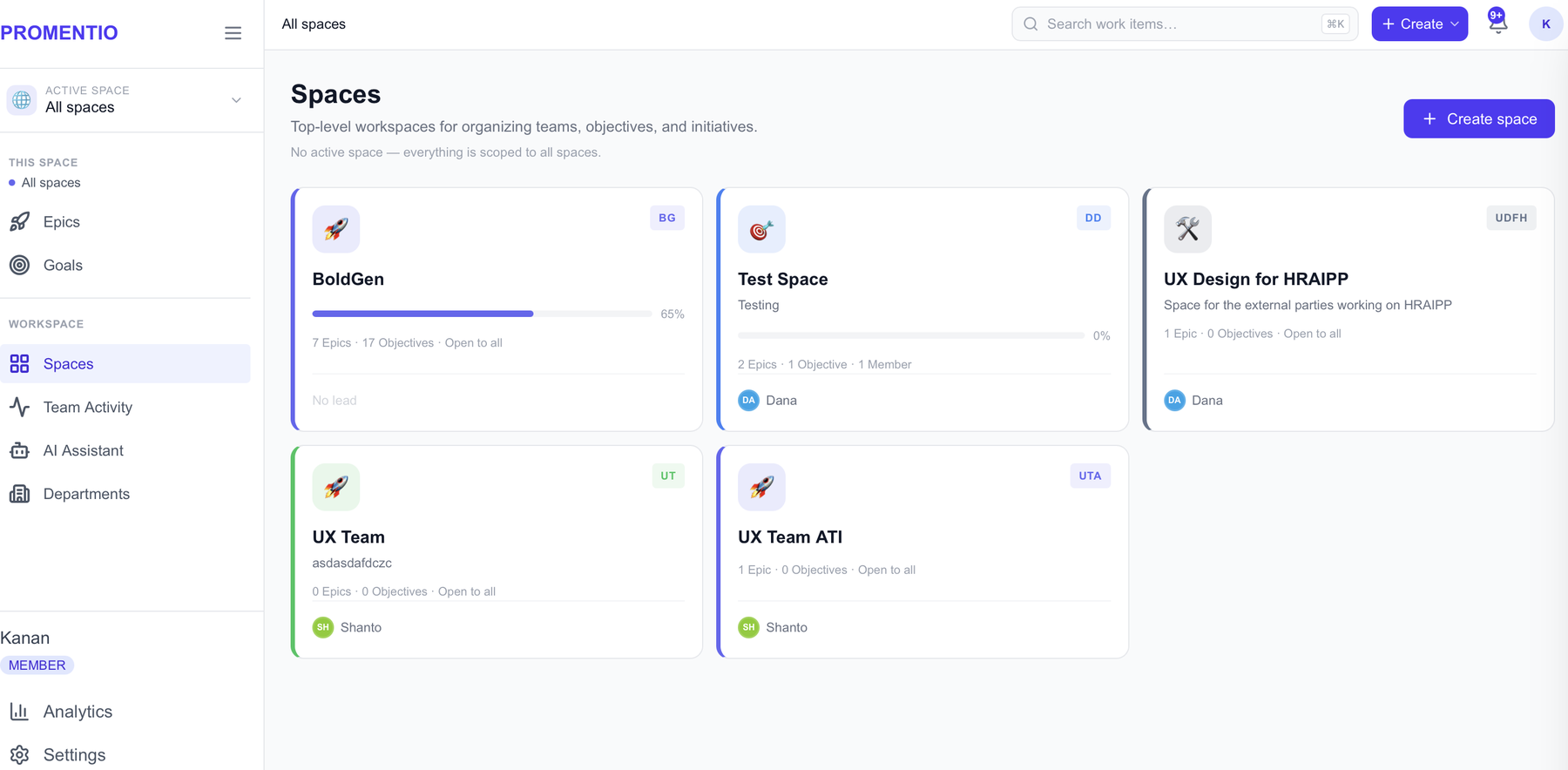
Create a Space
A Space is a self-contained workspace — one team, one product, one department. Everything else you create lives inside a Space, so this is the first thing to set up.
- Open Spaces in the sidebar, or pick Space from the Create menu in the top bar.
- Give it a name and a short key. The key is the tag you'll see next to work items, so keep it to a few letters — MKT, PLAT, SALES.
- Pick an icon and a colour. They're how you recognise the Space at a glance in the switcher.
- Optionally set a lead — the person who owns the Space.
The switcher at the top of the sidebar sets your active Space. While a Space is active, Epics and Goals show only that Space's work, and anything you create is filed there. Switch to All spaces to see everything at once.
- 02
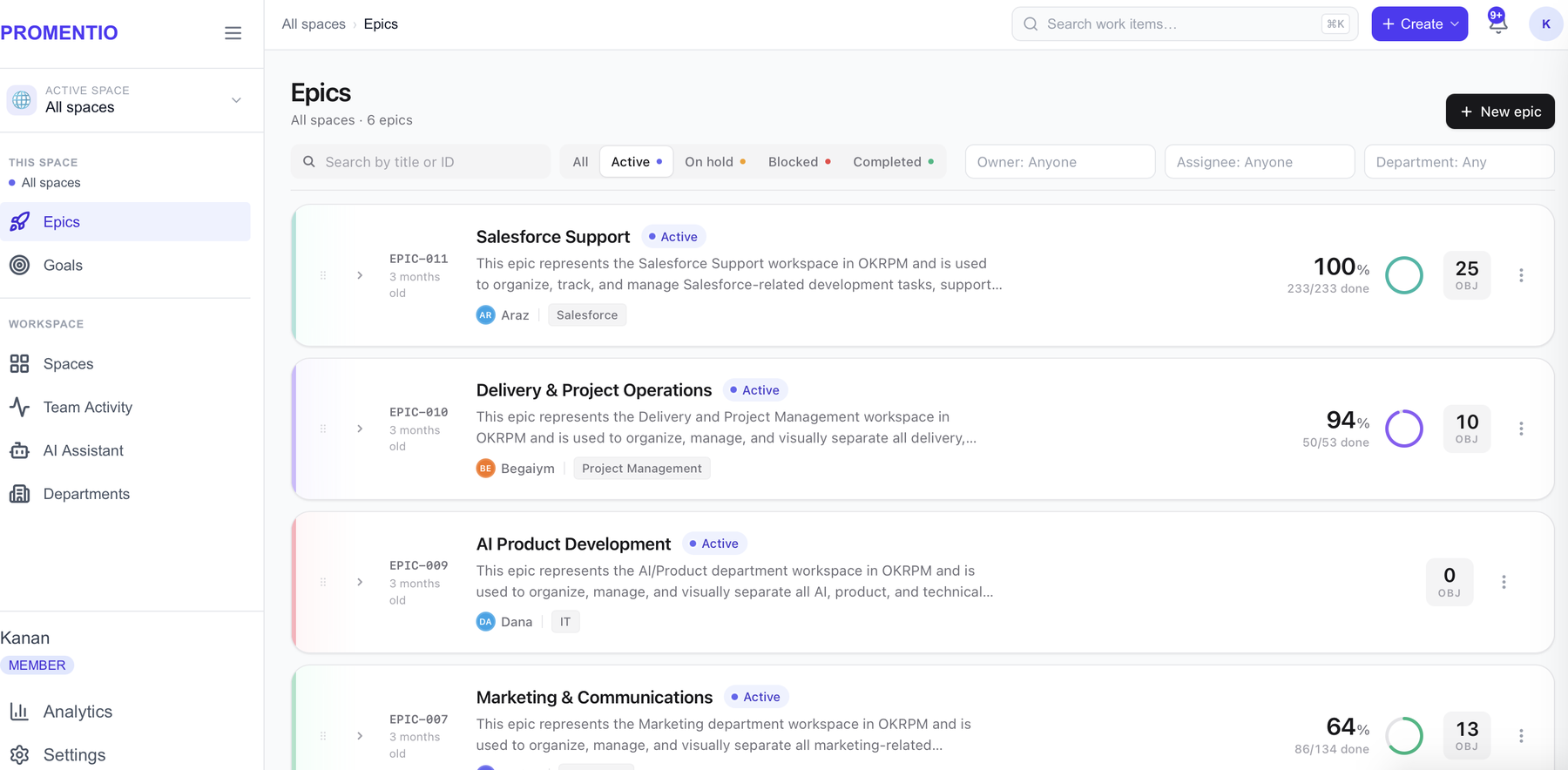
Add an Epic
An Epic is the biggest container of work: a theme that runs for a quarter or longer. Think “Launch the mobile app”, not “Fix the login bug”.
- Open Epics in the sidebar, or pick Epic from the Create menu.
- Give it a title and, if useful, a description.
- Assign an owner — the person accountable for the whole theme.
- Optionally attach one or more departments and a start and end date.
Epics are optional. An Objective can stand on its own without one. Add Epics when you have enough work that grouping it helps.
- 03
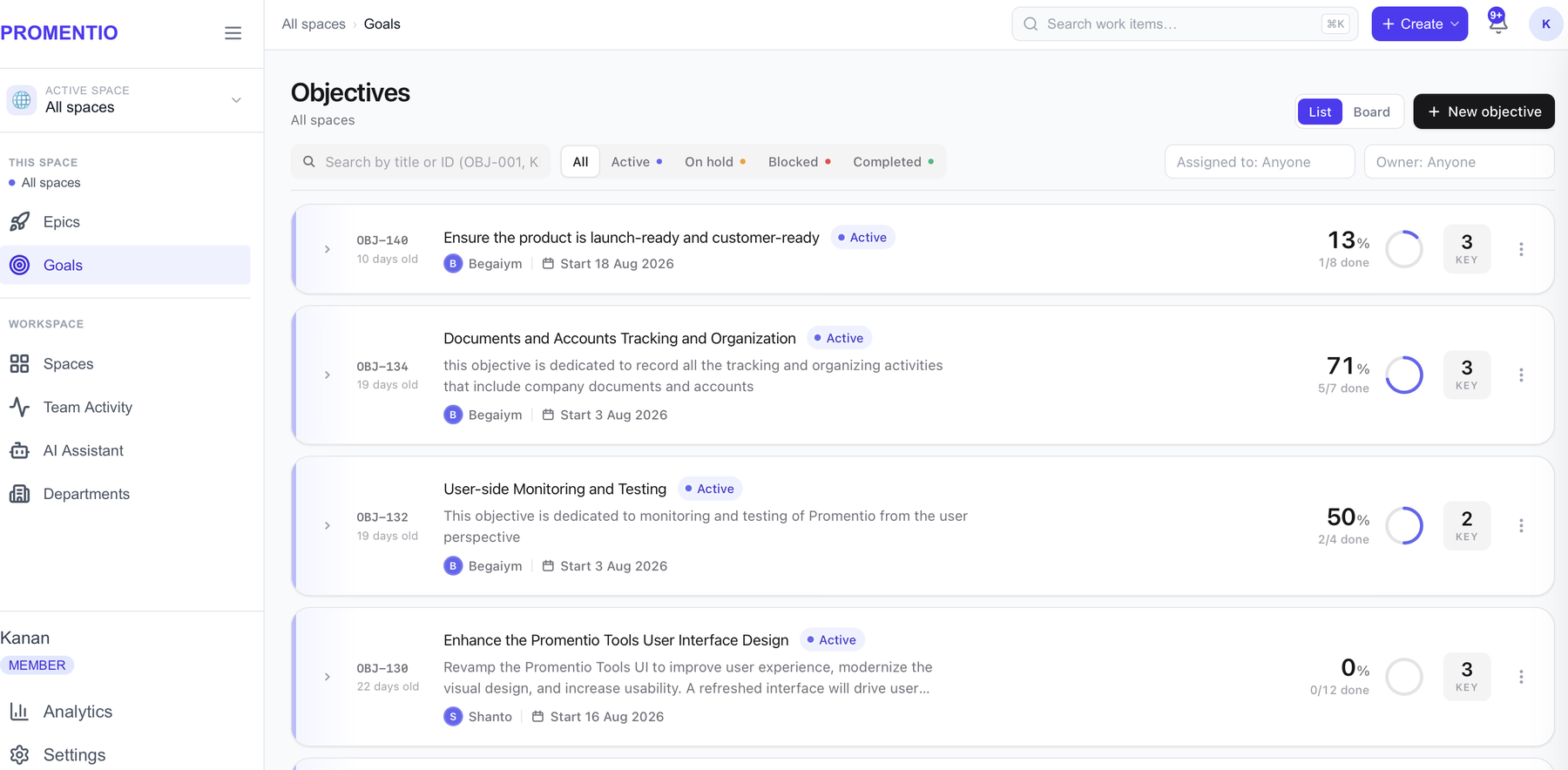
Write an Objective
An Objective is the change you want to see. It's written in plain language and it is deliberately not measurable on its own — that's what Key Results are for.
- Open Goals in the sidebar, or pick Objective from the Create menu.
- Write the title as an outcome, not a task: “Make onboarding effortless” rather than “Redesign the signup form”.
- Set the owner and, optionally, an assignee, a department and an Epic to file it under.
- Add a start and end date if the Objective is time-boxed.
A good Objective is ambitious and directional. If you can put a number on it, you're probably writing a Key Result.
- 04
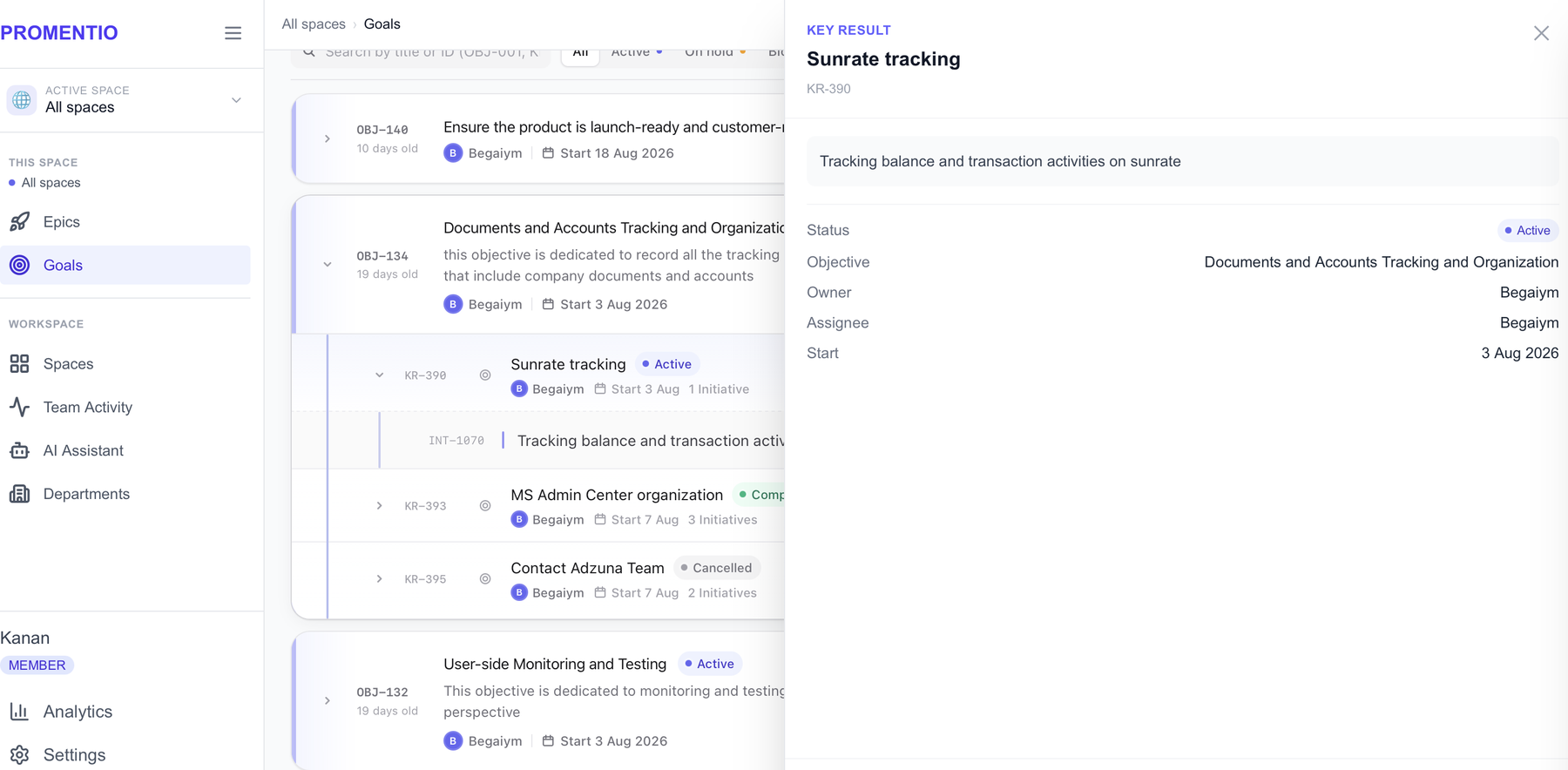
Add Key Results, then Initiatives under them
Key Results are how you'll know the Objective happened — each one is a measurable claim, and two to four per Objective is usually right. Initiatives are the tasks that deliver them: the work someone actually sits down and does.
- Expand the Objective and add a Key Result under it. Phrase it so it can be verified: “Cut time-to-first-task from 12 minutes to 4”.
- Attach an Outcome to the Key Result to hold the numbers — current value, target value and a unit.
- Expand that Key Result and add the Initiatives it needs. Write each as a piece of work: “Rewrite the welcome email sequence”.
- Give every Initiative an assignee, a start date and a due date, plus an estimate in hours or days if your team tracks effort.
Nothing happens above the Initiative level. Set an Initiative to Active and its Key Result and Objective follow automatically — you start work at the bottom and the levels above catch up on their own.
- 05
Track and report
With the tree in place, the rest of Promentio is about seeing where things stand and telling other people about it.
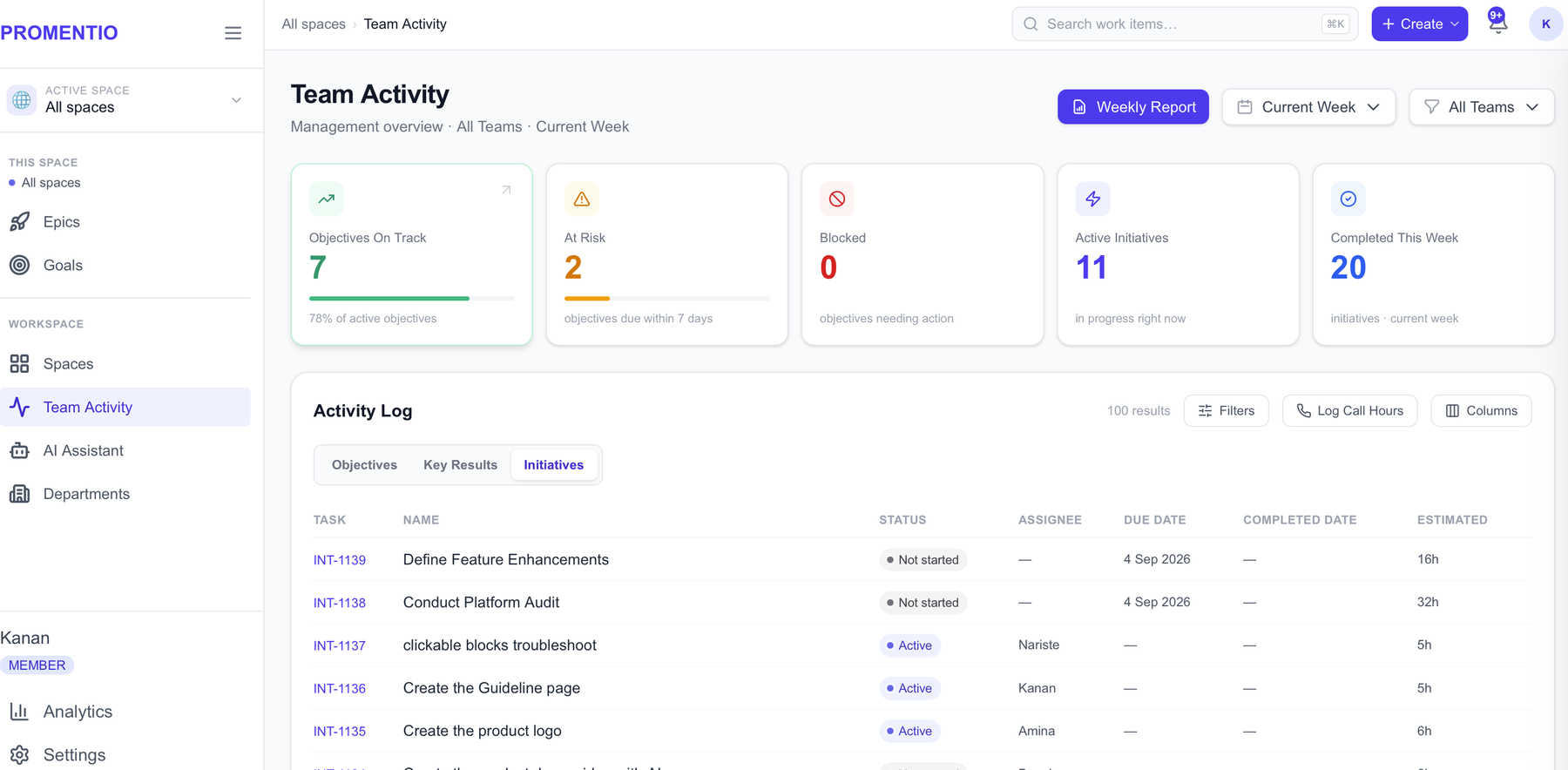
- Open Team Activity for the overview: objectives on track, what's at risk, what's blocked, and the full activity log of recent changes.
- Switch Goals between the list view and the board view — the board groups work by status and you restatus a card by dragging it.
- Press ⌘K (Ctrl K on Windows) anywhere to search across Epics, Objectives, Key Results and Initiatives at once.
- Generate the weekly report when you need a single page to share or print.
AI features
Promentio uses AI in four places. The two generators and Activity summaries show you a preview first — nothing is written until you accept it. AI Helper is the exception: it's a conversation, so a create or edit you ask for is applied right away and confirmed in the reply, the same as clicking through the app yourself.
Generate an objective tree
Describe a goal in a sentence and get a proposed Objective with Key Results and Initiatives beneath it. Review the preview, edit what you disagree with, then create it. Admins can add generation rules in Settings that steer the style and structure of what comes back.
Generate initiatives under a Key Result
Ask for the tasks a specific Key Result needs. Your recent prompts are kept so you can reuse a phrasing that worked.
AI Helper
One chat that reads, creates, edits and reviews. Ask it to build an epic with objectives and key results, mark something done, reassign a task, or check an epic against the OKR template. It also answers questions about your team's actual work in plain language — what completed this week, who is blocked, where the load sits — illustrated with charts and links to click through, all from your organization's live data.
Activity summaries
Team Activity can write a narrative summary of a period instead of leaving you to read the rows yourself.
Automation rules are the one exception to preview-first. An admin can set a rule that automatically creates an Initiative whenever a Key Result appears in a given department or Space — useful for steps that always happen, like a testing pass. The rule's title template can include {kr} to insert the Key Result's title.
Team activity and reports
Where to look when the question is about people rather than about a specific item.
Team Activity
Who is working on what, what moved recently, and where things are stuck. This is the page to open before a stand-up.
Priority objectives and workload
Pick out the Objectives that matter this period, and see the full workload view to find who is carrying too much.
The weekly report
A single page laid out for printing or sharing, built from the same data. Useful when someone outside the team needs the picture without a tour of the app.
Common questions
What is the difference between an Objective and a Key Result?
An Objective is the change you want, written in plain language — it has no number in it. A Key Result is the evidence that the change happened, and it always has a number. “Make onboarding effortless” is an Objective; “Cut time-to-first-task from 12 minutes to 4” is a Key Result.
Where do I put ordinary tasks?
Tasks are Initiatives, and they live under a Key Result. If a task doesn't belong under any Key Result, that's usually a sign the Key Result is missing rather than that the task doesn't fit — add the Key Result first.
Why can't I set my Objective to Active?
Because nothing underneath it is running yet. An Objective may only go Active when it has an Active Key Result that itself has an Active Initiative — the whole chain has to be live, not just the top of it. Start the Initiative instead and the Key Result and Objective will follow on their own.
My progress bar isn't moving. Why?
Progress counts finished children against total children, and items that are On hold or Cancelled are left out of both sides of that fraction. If everything under an item is On hold, there is nothing left to count.
I was told a status change breaks a rule. Can I do it anyway?
Yes, if your organization allows it. The first time, you just see the rule you'd be breaking. Try the exact same change a second time and an override appears. Note that these guardrails are switched off by default — an admin turns them on in Settings.
Do I have to use Epics?
No. An Objective can sit directly in a Space with no Epic above it. Epics are worth adding once you have enough Objectives that grouping them into themes helps.
Why can't I delete anything?
Deleting is restricted to admins, at every level. Members can create and edit freely — the restriction exists so nobody removes a branch of the tree by accident. Ask an admin, or set the item to Cancelled instead, which keeps the record and takes it out of progress.
Someone can't see a Space that I can. Why?
An admin can restrict a member to specific Spaces from the Team page. A member with no restrictions set sees every Space — that's the default. Once restricted, they see only what they were granted. Admins are never restricted.
Does the AI change my data on its own?
Not unless you ask it to. The generators and Activity summaries show you a preview and wait for you to accept it before anything is written. AI Helper is a conversation, so a create or edit you ask for there is applied right away and confirmed in the reply — but only what you asked for. The one thing that runs without a request is automation rules, which an admin sets up deliberately to create an Initiative when a matching Key Result appears.
Who can see Analytics?
Admins always can. Beyond that it's an organization setting with three options: admins only, specific members chosen by an admin, or everyone in the organization. It never reaches beyond your own organization, whichever setting is chosen.
Ready to start?
Sign in to your workspace, or register a new organization if you don't have one yet.