
Turn your objectives into results
Promentio connects the goals you set to the work that actually moves them — one tree from Objective to task, with progress that rolls up on its own and AI that helps you plan it.
Register an organization in a minute · Invite your team from Settings
Make onboarding effortless
Cut time-to-first-task from 12 minutes to 4
- DRewrite the welcome email sequenceDone
- AAdd a 3-step setup checklistDone
- SShip in-app tips for the first sessionActive
Raise week-one retention to 80%
AI Helper
Drafted 3 initiatives for “Raise week-one retention to 80%” — review and accept?
From OKRs to real work
One hierarchy, aligned around results
Five levels, each one contained by the one above it. A Space holds the team's work; an Objective says what should change; Key Results prove it did; Initiatives are the tasks that get it done. This is the single most important thing to understand about Promentio.
Nothing happens above the Initiative level. Start an Initiative and its Key Result and Objective follow automatically — you work at the bottom, and the levels above catch up on their own.
- SpaceMarketing
A workspace for one team, product or department. The container everything else lives in.
- EpicOwn the enterprise segment
A long-running theme that groups several Objectives. Optional.
- ObjectiveMake enterprise buyers trust us on day one
The change you want to see, in plain language. Not measurable on its own.
- Key ResultCut security-review turnaround from 15 days to 5
A measurable claim that proves the Objective happened. Two to four per Objective.
Attach an Outcome here to hold the actual numbers — current value, target value and unit. One per Key Result.
- InitiativePublish the SOC 2 summary page
The actual task. Has an assignee, dates and an estimate. This is where work happens.
Only the Space is mandatory at the top and the Initiative at the bottom. Epics are optional, and an Objective can sit directly in a Space without one.
How it works
From goals to execution
Objective
Make onboarding effortless
Not started
1Set an Objective
What should change
Time-to-first-task
12 min → 4 min
Week-one retention
61% → 80%
2Add Key Results
How you'll know it did
- DWelcome emails
- ASetup checklist
- SIn-app tips
3Break into Initiatives
The actual tasks
AI Helper
Marked “Welcome emails” done and reassigned the checklist to Amina.
KeepUndo4Work — with AI
Draft, edit, review by chat
- 67%
2 of 3 done
KR active
Objective active
5Progress rolls up
On its own, to the top
AI features
AI in four places, on your terms
The two generators and Activity summaries show you a preview first — nothing is written until you accept it. AI Helper is the exception: it's a conversation, so a change you ask for is applied right away and confirmed in the reply.
Generate an objective tree
Describe a goal in a sentence and get a proposed Objective with Key Results and Initiatives beneath it. Review the preview, edit what you disagree with, then create it. Admins can add generation rules in Settings that steer the style and structure of what comes back.
Generate initiatives under a Key Result
Ask for the tasks a specific Key Result needs. Your recent prompts are kept so you can reuse a phrasing that worked.
AI Helper
One chat that reads, creates, edits and reviews. Ask it to build an epic with objectives and key results, mark something done, reassign a task, or check an epic against the OKR template. It also answers questions about your team's actual work — what completed this week, who is blocked, where the load sits — with charts and links to click through, all from your organization's live data.
Activity summaries
Team Activity can write a narrative summary of a period instead of leaving you to read the rows yourself.
Automation rules are the one exception to preview-first. An admin can set a rule that automatically creates an Initiative whenever a Key Result appears in a given department or Space — useful for steps that always happen, like a testing pass. The rule's title template can include {kr} to insert the Key Result's title.
Reports
See where the team stands
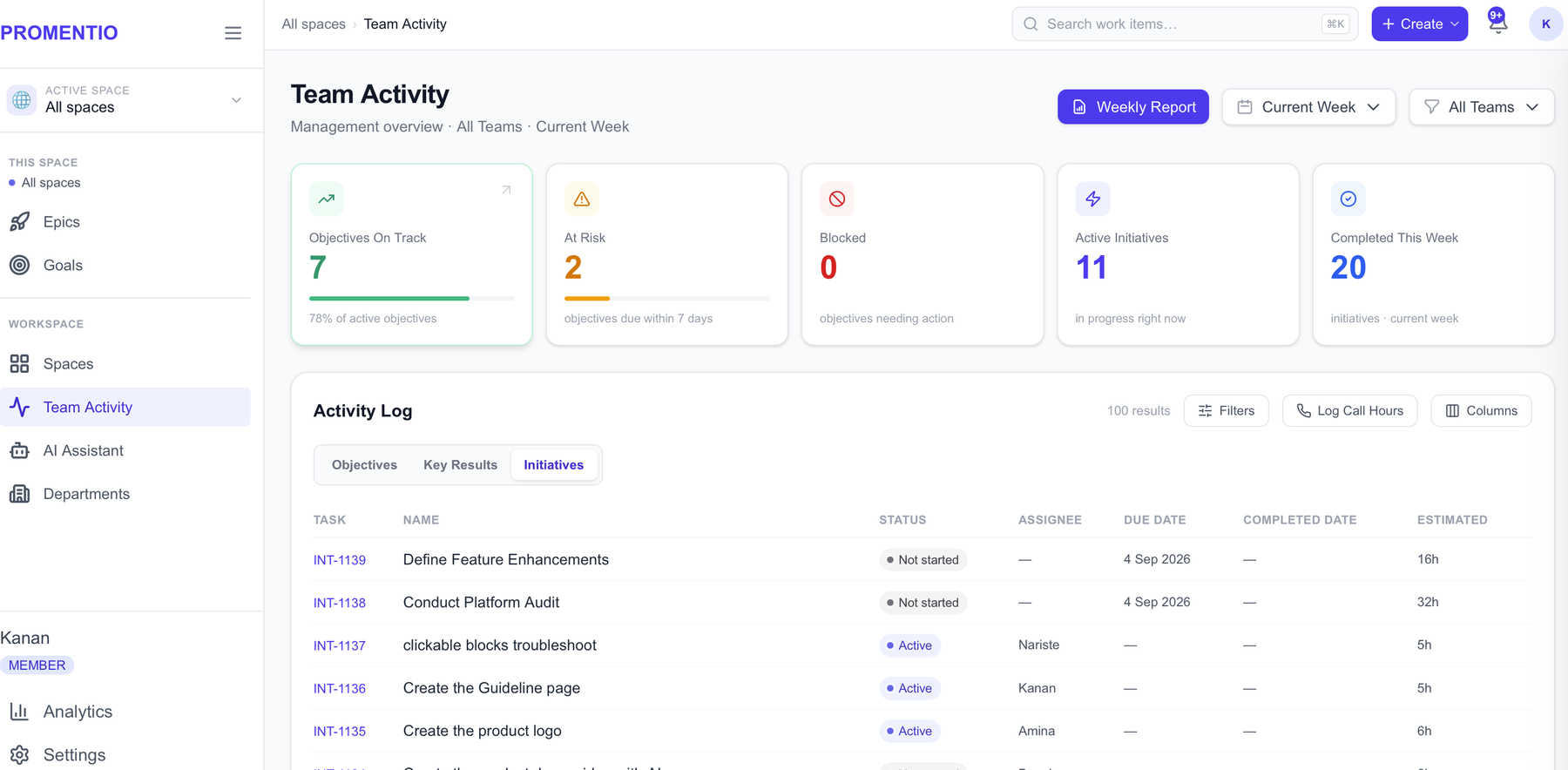
Team Activity
Who's on what, what moved, where it's stuck.
Priority objectives & workload
This period's goals, and who is carrying too much.
Weekly report
One page to print or share.
Questions
Common questions
An Objective is the change you want, written in plain language — it has no number in it. A Key Result is the evidence that the change happened, and it always has a number. “Make onboarding effortless” is an Objective; “Cut time-to-first-task from 12 minutes to 4” is a Key Result.
Tasks are Initiatives, and they live under a Key Result. If a task doesn't belong under any Key Result, that's usually a sign the Key Result is missing rather than that the task doesn't fit — add the Key Result first.
Because nothing underneath it is running yet. An Objective may only go Active when it has an Active Key Result that itself has an Active Initiative — the whole chain has to be live, not just the top of it. Start the Initiative instead and the Key Result and Objective will follow on their own.
Progress counts finished children against total children, and items that are On hold or Cancelled are left out of both sides of that fraction. If everything under an item is On hold, there is nothing left to count.
Yes, if your organization allows it. The first time, you just see the rule you'd be breaking. Try the exact same change a second time and an override appears. Note that these guardrails are switched off by default — an admin turns them on in Settings.
No. An Objective can sit directly in a Space with no Epic above it. Epics are worth adding once you have enough Objectives that grouping them into themes helps.
Deleting is restricted to admins, at every level. Members can create and edit freely — the restriction exists so nobody removes a branch of the tree by accident. Ask an admin, or set the item to Cancelled instead, which keeps the record and takes it out of progress.
An admin can restrict a member to specific Spaces from the Team page. A member with no restrictions set sees every Space — that's the default. Once restricted, they see only what they were granted. Admins are never restricted.
Not unless you ask it to. The generators and Activity summaries show you a preview and wait for you to accept it before anything is written. AI Helper is a conversation, so a create or edit you ask for there is applied right away and confirmed in the reply — but only what you asked for. The one thing that runs without a request is automation rules, which an admin sets up deliberately to create an Initiative when a matching Key Result appears.
Admins always can. Beyond that it's an organization setting with three options: admins only, specific members chosen by an admin, or everyone in the organization. It never reaches beyond your own organization, whichever setting is chosen.
Ready to start?
Register a new organization, or sign in to a workspace you've already been invited to. New to Promentio? The guideline walks you through the first hour.